
Step 1
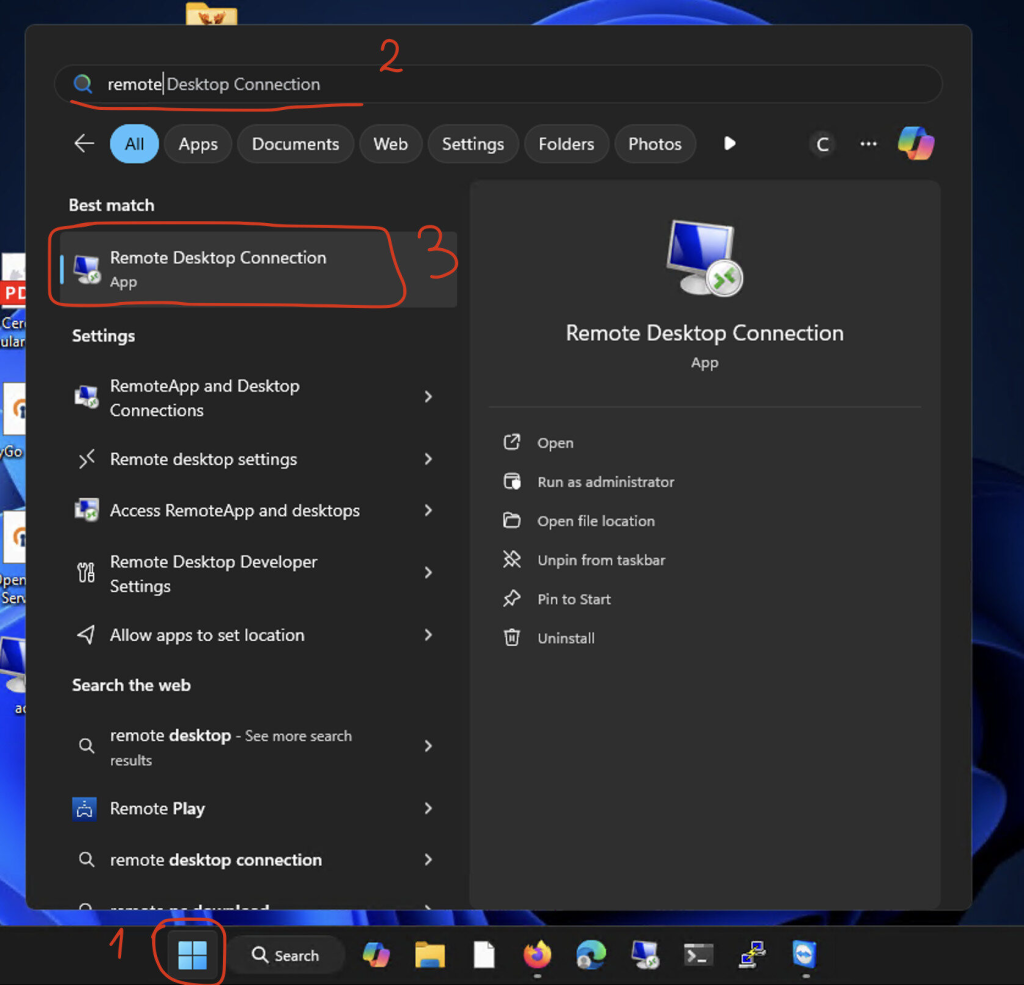
Press the start button and type or search for Remote Desktop Connection and open it.
Step 2
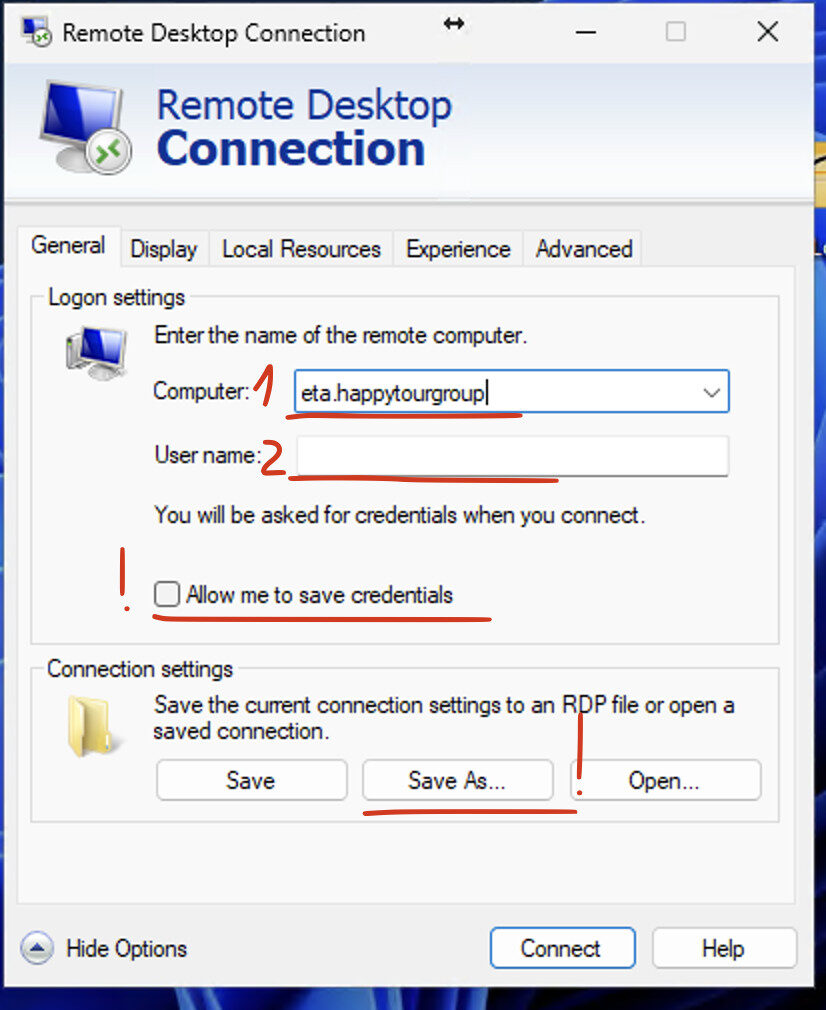
In the Remote Desktop app press show option on the left bottom.
Fill in the fields 1 and 2:
Computer: eta.happytourgroup.com.tr:38001
User name: The username you received via email, you will be asked for the password on connect.
Optional!
You can save your credentials for future use.
You can press save as to create a shortcut on your screen (Desktop or any other folder).
Step 3
Press Connect to establish the remote session.
After connecting with your user name and password you will be asked to confirm inside your DUO app.
For DUO enrollment, after you received the invitation email, you must follow the procedure here. Always use the app and not the phone number.
For problems with the connection please send an email to itsupport@happytour.ro with the error message in english.